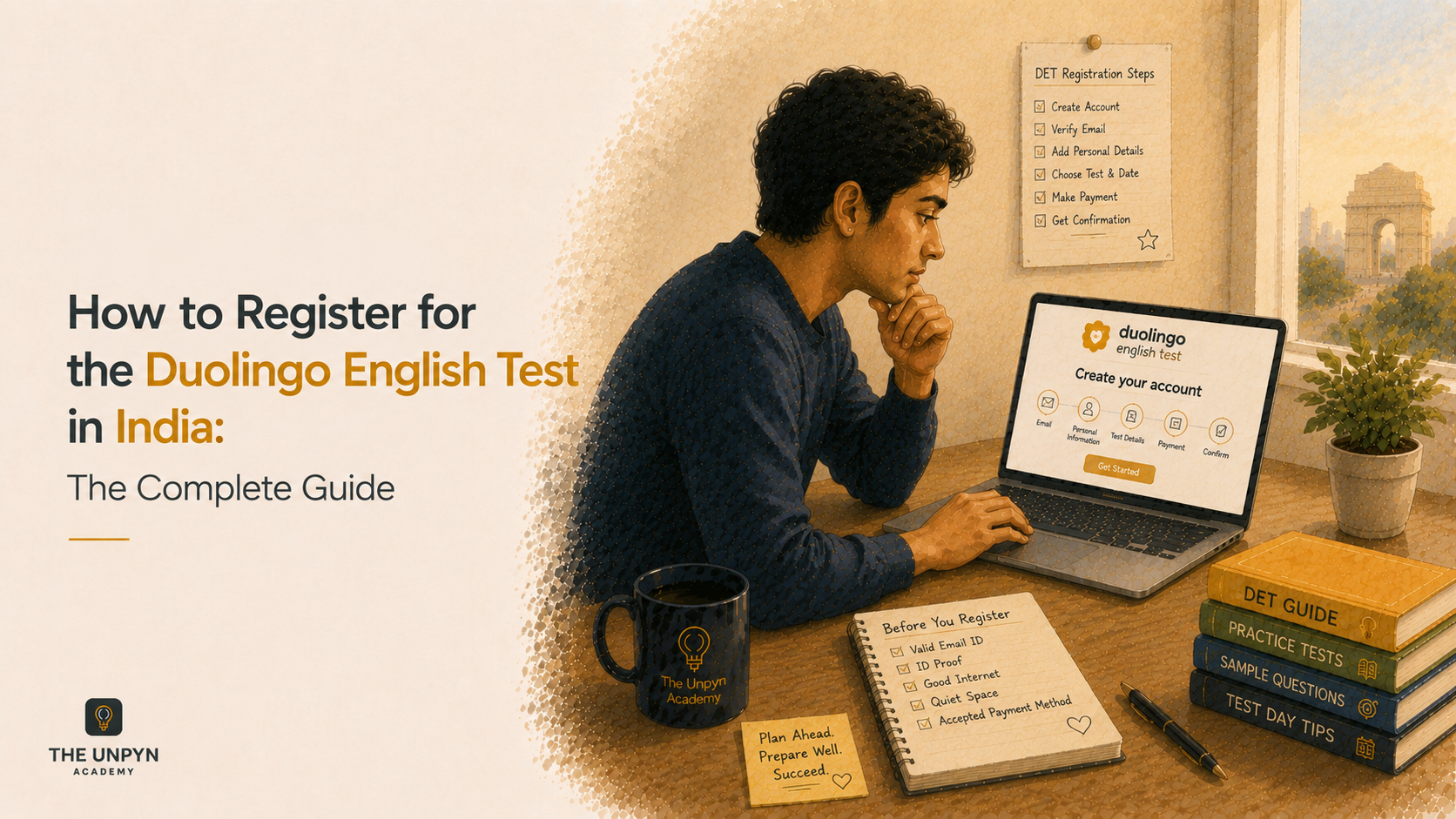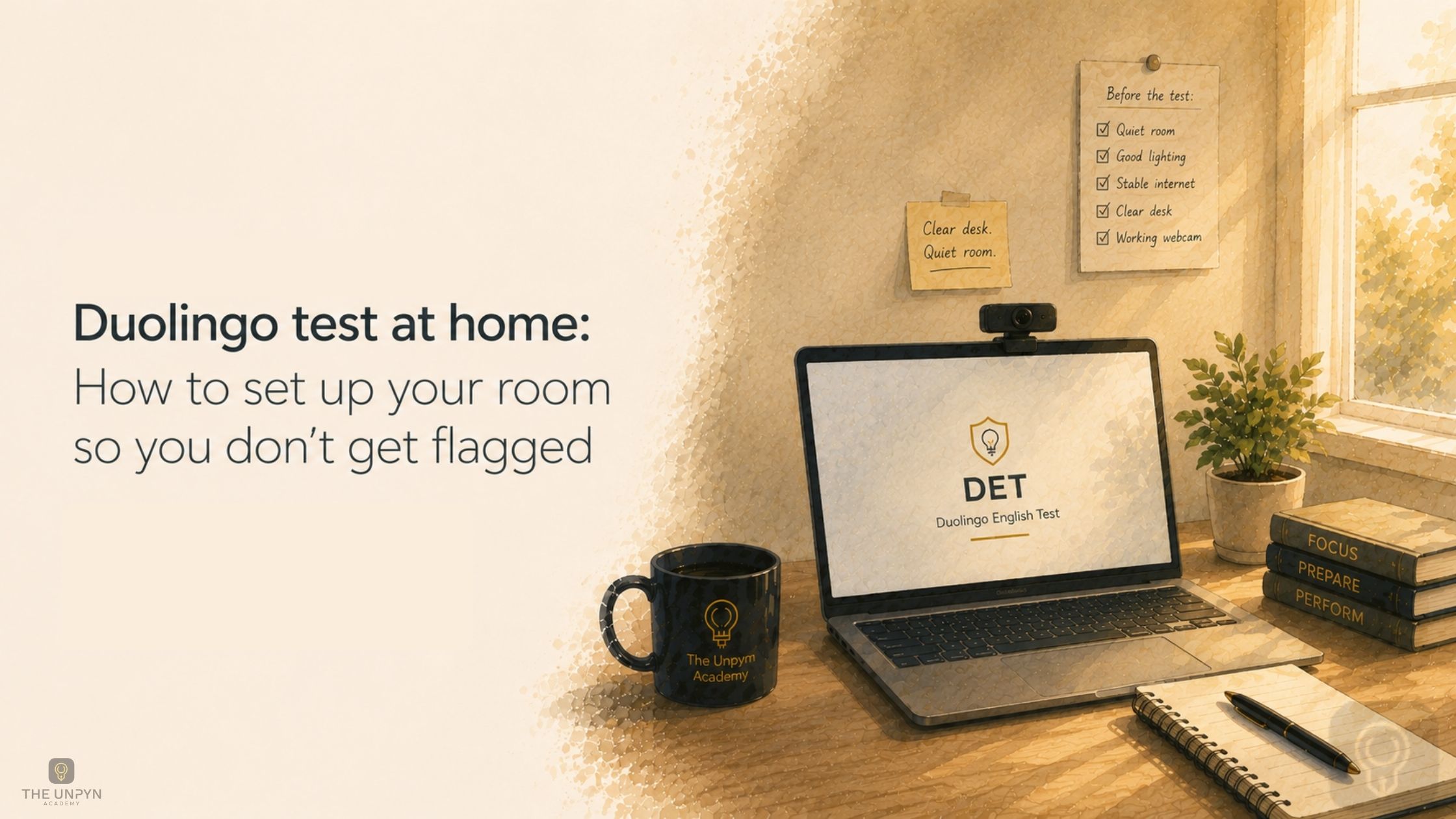
The Duolingo English Test costs around ₹5,500–6,000. Results come back in 48 hours. No travel, no test centre, no booking months in advance. It sounds almost too easy.
And then you hear the stories. Someone's score got invalidated because their door opened mid-test. Someone else lost their credit because they glanced to the side while thinking. A third person failed the ID check because the name on their Aadhaar didn't match their registration — and Aadhaar isn't even accepted.
The test itself isn't what trips people up. The setup is. Thousands of DET attempts are flagged or invalidated every month — not because the candidate was cheating, but because they didn't know the rules precisely enough. The platform uses AI monitoring combined with human proctor review, and it flags anything that looks irregular. It doesn't ask for context. It doesn't give you a warning. It flags, and the credit is gone.
This guide covers every meaningful mistake: what not to do, exactly why it gets you flagged, and what to do instead. Read it the day before your test. Walk through your setup. Then sit down with confidence.
Before You Even Start: Know What You're Being Monitored On
Since September 2025, the Duolingo English Test requires a secondary camera — your smartphone — positioned beside your computer throughout the test. It captures a wide-angle view of your screen, keyboard, and upper body while your computer's webcam covers your face. Before the test begins, you'll complete a 360° room scan using your phone and an ear scan to confirm you're not wearing audio devices.
The six types of actions that most commonly invalidate results are: frequent gaze diversion, exam interruptions, background programs running, copying and pasting, unauthorised items on the desk, and improper phone placement. Every single one is preventable.
The 11 Mistakes — What Not to Do and Why
❌ Mistake 1: Using Aadhaar, PAN, or Any ID Other Than Your Passport
Why it gets you flagged: Indian test takers must use a valid passport. Aadhaar, PAN, voter cards, and student IDs are not accepted in 2026. The system checks your ID type and rejects the attempt before you reach the first question.
What to do instead: Use your valid Indian passport. Make sure the name exactly matches your Duolingo account — middle names, spelling variations, and name order all matter.
❌ Mistake 2: Uploading a Photocopy or Screenshot of Your ID
Why it gets you flagged: Photocopies and digital images are not accepted. The system requires a live camera capture of the original document.
What to do instead: Have your physical passport ready. The desktop app will prompt you to show it to your webcam in real time. Hold it flat, in good light, and keep it steady.
❌ Mistake 3: Testing in a Room Where Someone Might Walk In
Why it gets you flagged: Even a brief appearance of another person, a shadow, or a door opening can result in instant invalidation. The AI flags any human presence in the frame.
What to do instead: Find a room with a door you can lock. Tell family members or flatmates the exact time window. The test is 60 minutes — arrange undisturbed time for 90 minutes to be safe.
❌ Mistake 4: Having a Messy or Cluttered Desk
Why it gets you flagged: Prohibited items include notebooks, sticky notes, printed pages, and any reference materials. Your desk should be completely clear — only your computer, mouse, keyboard, secondary camera phone, and a lamp if needed.
What to do instead: Clear the desk completely the evening before so you're not rushing on test day.
❌ Mistake 5: Positioning the Secondary Camera Wrong
Why it gets you flagged: The secondary camera must show your face, hands, and keyboard at all times. Improper phone placement is one of the six most common causes of invalidation.
What to do instead: Scan the QR code in the Duolingo desktop app to connect your phone. Place it horizontally (landscape mode) on a stable surface — a phone stand, stack of books, or propped against a wall — to the side of your computer. Confirm the frame includes your full screen, keyboard, and upper body before starting.
❌ Mistake 6: Wearing Earphones, AirPods, or Any Audio Device
Why it gets you flagged: The ear scan happens as part of pre-test verification. If a device is spotted, the test doesn't begin. If spotted mid-test, the attempt is invalidated.
What to do instead: Use your computer's built-in speakers. During the ear scan, turn your head slowly to show both ears clearly to the webcam.
❌ Mistake 7: Looking Away From the Screen While You Think
Why it gets you flagged: This is the most common accidental violation. When processing a hard question, eyes naturally drift — but proctors cannot distinguish this from reading notes. Frequent gaze diversion is the number one cause of invalidation.
What to do instead: In the days before your test, actively practise keeping your eyes on the screen while thinking. It feels unnatural at first, but you can build the habit in 2–3 practice sessions.
❌ Mistake 8: Running Background Apps, Extensions, or VPNs
Why it gets you flagged: The app detects background processes. This includes browsers, Grammarly, VPNs, WhatsApp Web, streaming software, and remote desktop applications.
What to do instead: Before starting, close every application except the Duolingo desktop app. Disable browser extensions. Turn off your VPN. Pause cloud sync. Put your computer in Do Not Disturb mode. Restart your computer an hour before the test.
Preparing for the DET and not sure if your setup is right? We run through the exact requirements with every student before test day.
Talk to a Trainer❌ Mistake 9: Copying and Pasting Anything
Why it gets you flagged: Any detected copy event causes automatic invalidation. The system monitors clipboard activity throughout. It doesn't ask whether you had a reason.
What to do instead: Don't touch Ctrl+C or Ctrl+V at any point during the test. If you habitually copy text while reading, break this habit during practice sessions.
❌ Mistake 10: Poor Lighting That Hides Your Face
Why it gets you flagged: If the proctor cannot clearly see your face, eyes, and expression, the attempt will be reviewed and may be invalidated.
What to do instead: Face a light source, not a window. A desk lamp placed in front of you and slightly above eye level is ideal. Test your lighting beforehand by opening your laptop camera.
❌ Mistake 11: Forgetting to Silence Your Personal Phone
Why it gets you flagged: A buzzing phone mid-test would combine a gaze diversion with an unauthorised device on the desk — two flags at once.
What to do instead: Put your personal phone in a different room entirely. The only phone on your desk is the one connected as your secondary camera.
The Pre-Test Checklist: Run Through This 30 Minutes Before
Room:
Door closed and locked, or at minimum secured
No other person in the room or likely to enter
Desk cleared of everything except computer, mouse, keyboard, secondary camera phone, and lamp
No posters, screens, whiteboards, or reflective surfaces visible behind you
Lighting is in front of you, not behind
ID:
Valid passport physically in hand
Passport name matches Duolingo account exactly
Passport is not expired
Secondary Camera (Phone):
DET mobile app installed
Phone fully charged or plugged in
Phone positioned horizontally, showing full screen, keyboard, and upper body
Phone stable and will not move or fall
Computer:
All apps closed except Duolingo desktop app
Extensions disabled (especially Grammarly, autocorrect, dictionaries)
VPN off
Do Not Disturb mode on
Speakers at a comfortable volume
You:
No earphones or earbuds
No cap, hood, or tinted glasses that obscure your eyes
Practised keeping eyes on screen while thinking
Personal phone in a different room on silent